1. This tip will show how to clean up Photos fast. You can remove moles, pimples, and scratches quickly with the Rubber Stamp Tool.
Firstly load an image that needs to be touched up.


2. Scan the image you have for any flaws, dings, scratches etc. If this is a Portrait of someone, then look for distracting skin moles, dimples, pimples etc.


3. Select the Rubber Stamp Tool from the menu. Make sure Caps Lock is off.


4. Select a brush size from the bushes pallet (Windows>Show Brushes). Choose a Soft brush that is only a little bigger then the actually area that needs fixing.


5. Hold down the Alt key (Mac: Option) and click right next to an area that has almost the same tone and color as the spot you need to touch up. By Pressing the Alt key and clicking, you have copied a part of the image. Now move the brush over the effected area and click. The spot is now covered as demonstrated in the animation.


6. Continue though the image with the Stamp tool and touch up areas that are needed. Try using different size brushes on larger and smaller effected areas.

First off, before I get any questions... What is a "Webbie"? I use this word for any kind of graphic that just adds something to a website. In this case, the webbie is an icon. But it could be anything from a mascot to bullets - webbies are all those little graphics that you just sort of lump together as being a part of website building.

If I can keep myself going on it, we're going to create a full set of webbies in this collection, all crystal based. Step one, though, is our Globe.

1. Open a new canvas in RGB mode, with a white background, 170 x 150.

2. Set your foreground color to RGB: 13, 129, 240. Grab your elliptical shape tool and hold down the shift key while you drag to draw a perfect circle on your canvas.

3. Immediately go ahead and add a stroke to the circle in the color RGB: 2, 57, 157.

4. Set your background color to RGB: 114, 193, 246. Go ahead and grab your gradient tool. Hold the Ctrl key down while you click your circle layer to load a selection around the circle. Then, drag your gradient so that it is dark at top, light at bottom.

5. Now, set your foreground color to a light gray. Use your elliptical shape tool to draw a circle on the upper half of the existing circle. Lower its opacity to about 40%. Then, use the elliptical marquee tool to "cut" the bottom half off. Do this two more times, to resemble the lighting below (Each circle is a bit tighter than the other, and one step closer to white. The smallest circle is blurred once it has been cut):

6. Now, set your foreground color to full-on white. Create a large circle that nearly touches the edges of our blue circle, rasterize it (right-click the layer, choose "Rasterize"), and then use your elliptical marquee tool to remove all but a thin crescent of this white circle. Use your blur tool on the very tips to smooth the edges:6. Now, set your foreground color to full-on white. Create a large circle that nearly touches the edges of our blue circle, rasterize it (right-click the layer, choose "Rasterize"), and then use your elliptical marquee tool to remove all but a thin crescent of this white circle. Use your blur tool on the very tips to smooth the edges:
7. Shaping right up! OK now, near the left side of your white crescent, you will need to draw a small white circle. Rasterize it and blur the whole thing so that it blends in with the look:

8. Now, set your foreground color to RGB: 138 214 252 and your background color to RGB: 13, 129, 240. Then... you've got it - yet another circle. This time, it should be an oblong circle in the lower half of the blue globe. Rasterize it and drag the layer down, so that it sits right above the original blue globe:8. Now, set your foreground color to RGB: 138 214 252 and your background color to RGB: 13, 129, 240. Then... you've got it - yet another circle. This time, it should be an oblong circle in the lower half of the blue globe. Rasterize it and drag the layer down, so that it sits right above the original blue globe:
9. Now, use Ctrl-Click to load this circle. Grab your gradient tool again, and this time set it to a radial gradient. Drag the gradient so that your light is on the inside, and the dark toward the edges, blending in to the blues already present:


10. Grab your blur tool once more, and smooth the edges of the gradient circle:

11. To go on, you'll need this map. Drag it right into Photoshop, click "Select", "All", and then copy-paste it into your globe image. Drag the layer so that it sits directly above the last circle we created:11. To go on, you'll need this map. Drag it right into Photoshop, click "Select", "All", and then copy-paste it into your globe image. Drag the layer so that it sits directly above the last circle we created:
12. Use your move tool to position the map a bit better on the globe:
13. Without moving off of the map layer, Ctrl-Click the original blue globe layer. Then choose "Select", "Inverse" and hit the backspace key on your keyboard. Deselect, and you should have something like this:
14. Go into your layer styles options and apply a color overlay in RGB: 0, 91, 214 :

15. The only thing left is a shadow, to complete the 3-D look. Use your ellipse tool and a dark gray to draw a thin circle BEHIND the original blue globe, right above the background layer. Rasterize, blur, and you're finished with something like this:15. The only thing left is a shadow, to complete the 3-D look. Use your ellipse tool and a dark gray to draw a thin circle BEHIND the original blue globe, right above the background layer. Rasterize, blur, and you're finished with something like this:

In this tutorial I'll show you how to use Photoshop CS and CS2 to change your keyboard shortcuts, how to save sets of customized keyboard shortcuts, and how to print out your customized sets. If you have an earlier version of Photoshop, at the end of the tutorial you'll find some helpful tips and a list of sites where you can download collections of Photoshop shortcuts in PDF form.

How To Change Photoshop Keyboard Shortcuts (CS & CS2 Only)
To create your own shortcuts in Photoshop CS or CS2, go to the Edit Menu and select Keyboard Shortcuts. The Keyboard Shortcuts dialog box serves as a shortcut editor, and includes all the commands that support shortcuts.


To modify the keyboard shortcuts you'll have to create a new keyboard shortcut set by clicking on the New Keyboard Set button (the icon to be clicked is immediately to the left of the trash can icon). You'll then be asked to name and save your shortcut set. Now select a heading from the dropdown menu on the left that says Shortcuts For. This allows you to view all of the Photoshop commands in either the Application Menus, the Palette Menus, or the Tools.

Once you've selected a heading you can search through the contents to locate the command you’d like to change or create a shortcut for. Commands that already have shortcuts will be indicated in the menu. You can change these if you’d prefer by clicking on the shortcut, typing in a new shortcut, and pressing Accept at the top right side of the dialog box.


To make a totally new shortcut, click on the blank space beside the menu command and type in the shortcut you’d like to use. To save it click on the Add Shortcut button.To make a totally new shortcut, click on the blank space beside the menu command and type in the shortcut you’d like to use. To save it click on the Add Shortcut button.


The hardest part here is finding a key combination that's not already taken. Even the Keyboard Shortcut command has a shortcut (it's Shift-Option-Command-K for Mac and Shift-Alt-Ctrl-K for Win).

How To Remove Shortcuts From A Command Or A Tool

Choose Edit> Keyboard Shortcuts. In the Keyboard Shortcuts dialog box, select the command or the tool name whose shortcut you want to delete, and then click Delete Shortcut.

How To Delete A Set Of Shortcuts
Choose Edit> Keyboard Shortcuts. In the Set pop-up menu, choose the shortcut set that you want to delete. Then click the Delete icon (or the Delete Shortcut button), and OK to exit the dialog box.

Create Project-Specific Custom Workspaces (CS2 Only)

Photoshop lets you create custom workspaces that display just the palettes you need for a specific project, and in CS2 a new customized workspace can also include one of your keyboard shortcut sets.


Choose Window> Workspace> Save Workspace. The option is listed under Capture. Just click on Keyboard Shortcuts and the active set will be saved with the new customized worskspace.

Context-sensitive Menus (they live in your mouse...!)
In addition to using keyboard shortcuts, you can also access many commands using context-sensitive menus. Context-sensitive menus only display commands that are relevant to an active tool, a selection, or a palette. To display a context-sensitive menu, right-click (Win) or Control-click (Mac) in a document window or palette.

For example, when you have a file with layers, clicking on the document in this way will bring up a contextual menu filled with layer options. This saves you a trip to the palette flyout.

Save Them, Print Them, Learn Them
To print your keyboard shortcuts, go to Edit, Keyboard Shortcuts and click Summarize. Photoshop will then save your shortcuts to an html document that can be opened in any text editor or web browser. From there you can print a copy to keep as a reference. Sweet.

Photoshop 6 Shortcuts & Photoshop 7 Shortcuts
Although the option of creating your own shortcuts is only available in the latest versions, don't despair. In earlier versions many of the commands already have their own shortcuts set in the program. To learn more about these, go Help> Photoshop Help to launch the Photoshop Help pages.

In Photoshop 7 or lower, you can find the shortcut commands in the Help menu's table of contents on the left-hand side of the page. Just scroll down to the very bottom. Macintosh and Windows each have their own index, and offer slightly different shortcuts for the same commands. Click on any of the headings and you'll be given a list of available shortcuts.
Since the help pages are launched in a browser, you also have the option of printing these pages to use as a reference guide.

Get Your Free Photoshop Shortcuts PDFs...
Photoshop expert Trevor Morris offers an assortment of free Photoshop Keyboard Shortcuts PDF files. You'll find the following:

Adobe Photoshop CS3

- Keyboard Shortcuts Cheat Sheet (July 6, 2007)
All keyboard shortcuts organized into four pages, by menu, as well as alphabetically by key.
- Keyboard Shortcuts Presets (June 23, 2007)
This keyboard shortcuts (KYS) file includes dozens of extra shortcuts for commonly used commands (all documented in the above cheat sheet). Installation instructions are included in the ZIP file.

Shortcuts For Photoshop CS2 - PDF
- Photoshop CS2 keyboard shortcuts organized into four pages, by menu commands and by key (alphabetically).
- Mac version of the above Photoshop CS2 keyboard shortcuts.
- Photoshop CS2 Keyboard Shortcuts (KYS), Menu Customization (MNU) and Workspace files, containing many additional shortcuts. 100% compatible with default keyboard shortcuts. All detailed in the above PDF.

Shortcuts For Photoshop CS - PDF

- Photoshop CS keyboard shortcuts organized into two pages (ideal for laminating as a two-sided reference). Page 1 organized by commands, page 2 by keys.
- Mac version of the above Photoshop CS keyboard shortcuts.
- Photoshop CS Keyboard Shortcuts (KYS) file containing many additional shortcuts. 100% compatible with default keyboard shortcuts. All shortcuts available in the above PDF.

Shortcuts For Photoshop 7 - PDF
- Photoshop 7 keyboard shortcuts organized into two pages (ideal for laminating as a double-sided reference). Page 1 is organized by commands, and page 2 is organized by keys.
- Mac version of the above Photoshop 7 keyboard shortcuts.

Shortcuts For Photoshop 6 - PDF
- Two page Photoshop 6 keyboard shortcuts.
- Two page Photoshop 6 keyboard shortcuts for the Mac.

Shortcuts For Photoshop 5 - PDF
- Photoshop 5.x keyboard shortcuts. Page 1 is organized by keys, and page 2 is organized by commands.

Free Default Tool Palette Chart With Keyboard Shortcuts (PS CS3)
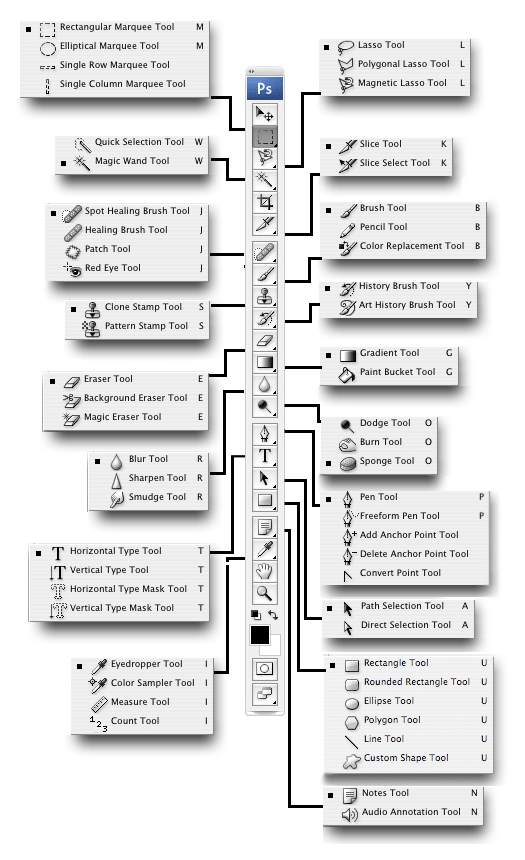
Below you'll also find a graphic from Chapter 2 of Photoshop CS3 Channels And Masks Bible. This is the Photoshop CS3 Default Tool Palette (with all the flyouts showing - along with their keyboard shortcuts). Photoshop CS3's tool palette displays the icons for 22 different tools in a tall, vertical palette. Some of the tool icons expand to access tools that are not visible, bringing the entire number of tools to 58 plus paint swatches, Quick Mask icons, and the view modes. Click the small black arrow on the lower right of the tool icon to display the additional related tools in a flyout menu. Thanks to our friends at Wiley for the free chapter and the free tool palette chart. And here is a direct link to the graphic for the Photoshop CS3 Default Tool Palettes Chart, so you can print it out.


Shortcuts For Adobe Bridge and Camera Raw 3
The keyboard shortcuts for Adobe Bridge and Camera Raw 3 are available from PhotoshopNews (courtesy of Ian Lyons, Computer-Darkroom).

Power Shortcuts PDFs From The Adobe Evangelists Site
There are some free PDFs of Photoshop Shortcuts by Julieanne Kost & Daniel Brown that you can download from the Adobe Evangelists site. Look for:

Photoshop CS2 - Power Shortcuts
From the PDF: "In Photoshop CS2, many of the shortcuts for the application menus, palette menus and tools can be customized using the Keyboard Shortcuts editor. Although this document mentions some of the more common editable shortcuts, it also provides additional functionality only accessible through using keyboard modifiers which can't be changed through the Keyboard Shortcut editor."
To help organize the document, it is subdivided into the following 6 categories: The Tool Palette, Navigating the Work Area, Palette Shortcuts, Adobe Bridge, Camera Raw, and Grab Bag (everything else).

You'll also find Power Shortcuts for Photoshop CS and Photoshop 7, as well as some other really good goodies.

Time To Control-W (Mac: Command-W) This Tutorial
There are so many 'hidden' features in Photoshop that can only be accessed through the shortcuts that I think the software engineers purposely added them as little rewards to create a treasure hunt for those of us who take the time to dive deeper into this amazing program.

Now go and study the shortcuts, because, as Trevor Morris says, "Keyboard shortcuts can not only improve your efficiency in Photoshop, but they can even provide you with functionality that might not be available by any other means."

And make sure to create a shortcut for having fun. That's essential!

tutorial and images © Jennifer Apple of PhotoshopSupport.com

These Photoshop beginner tips and shortcuts address some of the most common things you'll do in Photoshop, and learning them will save you lots of time down the road.These Photoshop beginner tips and shortcuts address some of the most common things you'll do in Photoshop, and learning them will save you lots of time down the road.

Create Project-Specific Custom Workspaces
Photoshop lets you create custom workspaces that display just the palettes you need for a specific project. For instance, if you're planning on working with text, you'll want to have the Paragraph and the Character palette open. But later you might be editing some Photos and want to close your text palettes to make room for photo editing palettes like color swatches and brushes. With custom workspaces you can switch quickly.
Once you've arranged the palettes just the way you want them, choose Window> Workspace> Save Workspace. Name your workspace and then click Save. Here's another tip - plan ahead so your custom workspace names make sense. This will be another time-saver later on when you need to locate one from the Workspace submenu.


Display The Same Image In Two WindowsDisplay The Same Image In Two WindowsDisplay The Same Image In Two Windows

When doing detail work on an image you may need to zoom in to take a closer look at the pixels. But to make sure that any changes you're making in this magnified state will look realistic at a normal view you'll have to zoom out for a quick look. Here's a great tip - instead of zooming in and out you can have the same image open in two windows at the same time.
With an open image selected choose Window> Arrange> New Window (the original file name will be listed). The same image will now appear in a new second window.
Keep one window set at 100% to see your effects, and work in the second window - either zoomed in or zoomed out. Sweet.


Instant Grabber HandInstant Grabber Hand
Ever been frustrated by having to switch tools to move your image around the canvas? Here's the solution — Press the Spacebar to temporarily activate the Hand Tool. Click to move an image freely inside a canvas area that is smaller than the image. Release the Spacebar and the hand tool will revert back to the current tool you have selected.


Getting Rid Of The Marching AntsGetting Rid Of The Marching Ants

Selecting an object will activate a line of dashes that blink to show you the selection's edge (marching ants), but they can be a visual nuisance at times. To quickly hide the selection marquee, Press Command+H (PC: Control+H). To view them again just repeat the shortcut.


Quick Revert - The Undo CommandQuick Revert - The Undo CommandQuick Revert - The Undo Command

To undo your last image modification Press Control+Z (MAC: Command+Z), and repeat the shortcut to undo the undo. Toggling back and forth like this is a good technique to review the before and after effects of a one-step change to an image, like dodge or burn.

For situations where you need to perform a multiple undo, go Edit> Step Backward or use Control-Alt-Z (MAC: Command-Option-Z. To go the other way (multiple redo) go Edit> Step Forward or use Control-Shift-Z (MAC: Command-Shift-Z). The number of steps available is the same as the number of History States, which can be changed in General Preferences.

Control Your Color Squares
Press D to reset your color squares to their default of black as the foreground color and white as the background color.
Press X to switch your foreground color and your background color.
To change the color of one of the color squares Click on a Color Square. This brings up the color picker, where you can select a new color.


Selecting Colors From An Image QuicklySelecting Colors From An Image Quickly

Press I to activate the Eyedropper Tool and then click on any color in your image to turn that color into the foreground color. Press the ALT Key and click on any color in your image to turn that color into the background color.

Change Brush Tip Sizes Quickly
With a brush selected, simply Press the Right Bracket Key "]" to increase the size of your brush tip, or Press the Left Bracket Key "[" to decrease the size of your brush tip.

The Move Tool & The Arrow Keys
Get in the habit of calling up the Move Tool with the keyboard shortcut, which is the letter V. Also, once the Move Tool is active you can use your Keyboard Arrow Keys to nudge a layer or selection in 1 pixel increments. To speed things up, Press Shift along with an arrow key to nudge in 10 pixel increments.


Hide Your PalettesHide Your PalettesHide Your Palettes

Press Tab once to hide all your palettes. Press Tab again to bring them back. Press Shift+Tab to hide all your palettes except the toolbar.

Zooming In & Zooming Out
To zoom in Press Command and the plus sign "+" (PC: Control and the plus sign). To zoom out Press Command and the minus sign "-" (PC: Control and the minus sign).


Navigating In Magnified ImagesNavigating In Magnified Images

If you've zoomed in on a large image and have lost your bearings you can jump quickly to specific views using these shortcuts:
Press the Home Key to set the view to the top left hand corner of your image.
Press the End Key to set the view to the bottom right hand corner of your image.
Press the Page Down Key to move the view one full screen down.
Press Command+Page Down (PC: Control+Page Down) to move the view one full screen to the right.
Press Command+Page Up (PC: Control+Page Up) to move the view one full screen to the left.

Selecting Just The Pixels On A Layer
An easy way to select an object that is on a transparent layer is to Press the Command Key (PC: Control key) and click on the layer with the object in the Layers Palette. This makes sure that only the opaque pixels (the pixels that are visible) will be selected with the marching ants, instead of the entire layer.


Tile Images For Better VisibilityTile Images For Better Visibility

When you open many files at once Photoshop has them cascade, and the overlapping files can make it difficult to select individual ones. To get around this choose Window> Arrange> Tile and all of your open files will rearrange themselves to be visible all at once. When you're ready to close them all don't spend time closing them individually, instead use the Close All shortcut Command+Alt+W (PC: Control+Option+W).

Getting Rid Of The Welcome Screen - And Bringing It Back
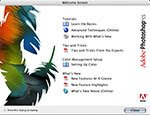
When first launching Photoshop CS you'll see a Welcome Screen that has links to some Tutorials, some Tips and Tricks, and a set of Color Management Help Files. After a while you might want to get rid of this screen. There's a check box at the bottom you can select to hide the screen at startup.
If you change your mind later and decide you'd like to investigate the tutorials and other goodies, you can temporarily bring the screen back by going under the Help menu and choosing Welcome Screen.

Cycle Through All Of Your Open DocumentsCycle Through All Of Your Open Documents

Sometimes you'll want to find one of your open documents that is hidden, but navigating using the Window menu won't help because you can't recall the name of the file. Instead press Control-Tab repeatedly (MAC and PC) to cycle through all of your open documents.

tutorial and images © Jennifer Apple of PhotoshopSupport.com


Adobe sebagai salah satu perusahaan terbesar software image dan Video Editing akhirnya resmi meluncurkan Creative Suite 4 (CS4) tanggal 23 September 2008. Paket aplikasi digital imaging ini memiliki tampilan antarmuka baru berupa sistem tab, di mana file dan obyek dapat dibagi aksesnya melalui tab. Adobe CS4 juga mendukung render yang lebih cepat.

Adobe Steative Suite CS4 yang diperkenalkan ada enam varian mulai dari:Adobe Steative Suite CS4 yang diperkenalkan ada enam varian mulai dari:Adobe Steative Suite CS4 yang diperkenalkan ada enam varian mulai dari:
1. Web Standard edition yang yang terdiri dari Adobe Flash CS4 Professional, Adobe Dreamweaver Professional, Adobe Fireworks CS4, dan Adobe Contribute CS4.
2. Premium Web edition
3. Paket Standard
4. Paket Premium
5. Production Premium edition
6. Master Collection seharga US$ 2499 yang berisi 13 produk Lengkap Adobe mulai dari Photoshop CS 4 hingga Dreamweaver CS 4 maupun Flash CS4

Dalam Kesemua versi CS4 menyertakan Adobe Bridge media manager dan aplikasi Device Central untuk menguji program di dalam ponsel. Kesemua varian kecuali Production Premium menyertakan sistem manajemen file bernama Adobe Cue.


CS4 akan dipasarkan 64-bit, padahal Apple selaku pengembang hardware dan software, lebih memilih arsitektur Carbon daripada Cocoa. CS3 juga dibangun dengan Carbon.

Semoga Bermanfaat
Terima Kasih

Link Share News
http://www.ilmugrafis.com/news.php?page=adobe-luncurkan-creative-suite-cs4

14 Desember 2008

Ukuran Kertas Foto

Ukuran kertas foto

2R = 6 x 9 cm

3R = 8,9 x 12,7 cm

4R = 10,2 x 15,2 cm

5R = 12,7 x 17,8 cm

6R = 15,2 x 20,3 cm

8R = 20,3 x 25,4 cm

8R Plus = 20,3 x 30,5 cm

10R = 25,4 x 30,5 cm

10R Plus = 25,4 x 38,1 cm

 
Tutorial Photoshop kali ini adalah cara membuat efek foto yang robek. Kali ini saya akan gunakan foto teman saya, Khaeru ‘Temujin’ Ahzami ketika saya dan teman-teman hang-out bareng di Pantai Balekambang-Malang, September 2008.

Pada gambar ini, foto saya potong menjadi dua bagian dengan seleksi kemudian diubah letak layernya sehingga nampak terpisah. Untuk membuat kesan lebih dramatis saya beri efek bayangan.


Langkah Membuat Efek Foto Robek

Langkah 1
Bukalah gambar yang akan Anda olah dengan Photoshop. Nah ini dia foto asli yang mo saya edit. :D


Langkah 2
Buatlah seleksi pada gambar dengan menggunakan lasso tool. Buatlah agar seleksinya memotong sebagian dari gambar hingga ke salah satu tepinya (piye ki ngomonge?) :t , lebih jelasnya bisa dilihat pada gambar ilustrasi tutorial dibawah ini.


Langkah 3
Simpan hasil seleksinya, dengan memilih menu Select > Save Selection.

Langkah 4
Pilih channel hasil seleksi pada palet channel.

Langkah 5
Pilih menu Filter > Pixelate > Crystalize. Isikan nilai 3 (ukurannya bisa disesuaikan sendiri, namun jika slider digeser minimalnya tetap cuma 3). Klik OK. Tujuan langkah ini untuk membuat tepian seleksi menjadi tidak rata secara otomatis.


Klik icon Load channel as selection.


Langkah 7
Klik channel RGB. Langkah 6 dan 7 ini tujuannya agar kita kembali ke channel seperti awal namun sudah mempunyai seleksi yang tidak rata.Langkah 8
Tekan Ctrl + J, tujuannya untuk membuat duplikat hasil potongan seleksi.

Langkah 9
Klik layer Background (yang masih merupakan foto asli dan belum dipotong). Tekan Ctrl + J. Ini akan membuat layer Background copy.

Langkah 10
Ctrl + klik pada nama layer 1 (yang merupakan layer hasil potongan). Layer yang aktif masih tetap pada layer Background copy.

Langkah 11
Sekarang tekan tombol Delete. Ini untuk menghapus area yang berada dalam seleksi. Kemudian hilangkan seleksi, dengan cara memilih menu Select > Deselect.

Langkah 12
Klik atau pilih layer Background. Isi layer ini dengan warna putih. Caranya dengan memilih menu Edit > Fill. Pada bagian Use=White, Opacity=100%.

Langkah 13
Aktifkan atau pilih layer 1. Atur ukuran dan posisinya dengan cara memilih menu Edit > Free Transform. Begitu juga dengan layer Background copy.


Langkah 14
Untuk menambah kesan hasil robekan, bisa ditambahi dengan efek bayangan. Pada tutorial Photoshop ini saya gunakan Layer > Layer style > Drop shadow.


Catatan: Jika Anda ingin seluruh gambar bisa ditampilkan sehingga bagian yang terputar pada langkah 13 tadi tidak nampak terpotong, caranya dengan Anda lakukan pilih menu Image > Reveal All.
Berikut ini gambar hasil pembuatan efek foto robek...... :z

11 Desember 2008

Bikin Foto jadi Jadul

Foto jaman sekarang diubah ke model foto jaman perjuangan? Mana bisa? tenang...coba dulu tutorial ini dijamin foto kamu yang full colour bisa jadi foto hasil jepretan masa lampau...alias jadul abis!!!
Langkah - Langkahnya:
1. Buka foto kamu di Photoshop, sebagai contoh saya kan edit foto seperti di bawah ini:
 
Tips!!
Atau jika anda ingin gambar yang lain bisa mencari foto2 artis idola anda di Google Custom Search di atas dengan memasukkan kata kunci nama artis idola anda...

2. Setelah itu kita ubah gambar ke mode hitam putih...
Caranya: Menu Utama pilih Image - Adjustment - Desarture
Hasilnya:


3. Setelah itu kita beri effek Film Grain
Caranya: Menu Utama pilih Filter - Filter Gallery - Film Grain
Setting:

Maka Hasilnya:

Texture Gambar menjadi agak kasar

4. Sekarang tinggal sentuhan terakhir yaitu menjadikannya terkesan KUNO
Caranya: Menu Utama pilih Image - Adjustment - Hue/Saturation
Setting:


Dan.............
Hasilnya:

Gimana???
kira-kira foto ini dah berapa tahun usianya???
<;> Selamat Mencoba <;>

  © Template Blogger di-desain oleh Taufik Perdana 2008